MFL_LUT Level Tool
Designed for fast iteration when scattering rocks, foliage, and environmental props, helping you break up repetition and find natural layouts in seconds.
What is this tool?
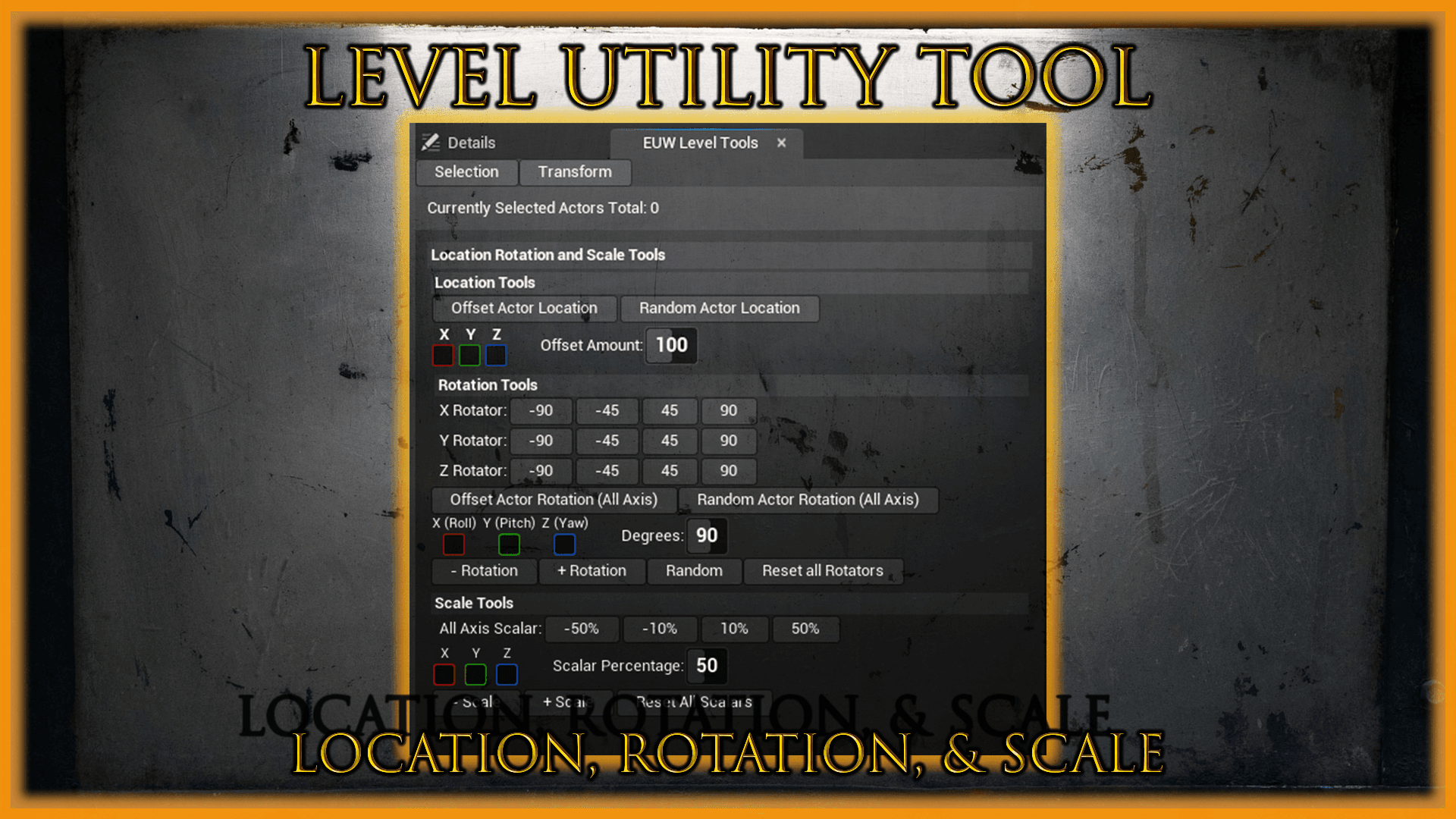
MFL_LUT Level Tool is an Unreal Engine Editor Utility Widget built to speed up environment layout and set-dressing workflows. It provides fast, repeatable Location, Rotation, and Scale operations for selected actors helping you to iterate quickly, reduce visible repetition, and find natural layouts without manual per-actor tweaking.
The workflow is intentionally simple: select → adjust → evaluate → repeat.
Fast iteration for common environment dressing tasks
Below are real examples of the tool being used to quickly manipulate common environment assets. Each clip demonstrates rapid iteration to break repetition, find variation, and lock in a natural layout.
Rock scattering & formation cleanup
Quickly offset, rotate, and scale rock meshes to break up tiling and mirrored shapes. Ideal for refining cliff faces, ground scatter, and clustered formations after initial placement.
- • Break visible repetition fast
- • Iterate layouts without manual tweaking
- • Keep results organic while staying in control
Bushes & foliage variation
Introduce organic variation to foliage groups by applying controlled random offsets, rotations, and scale adjustments reducing uniformity while preserving overall composition.
- • Controlled randomness per click
- • Fast variation for clusters and lines
- • Great for “natural messiness”
Pillars & structural props iteration
Adjust architectural or structural props with predictable increments and controlled randomness. Explore layout quickly while maintaining alignment and readability.
- • Great for repeating structural elements
- • Combine preset increments with fine control
- • Faster “try variants” workflow
Buttons and functionality
A reference-style breakdown of the widget controls. The tool only affects explicitly selected actors, and all actions are undoable.
- • Currently Selected Actors Text : displays number of actors currently selected by the tool
- • Select Actors in Level : selects applicable actors within the level for batch operations
- • Clear Actors in Level : clears the current tool selection
The widget provides three primary transformation categories:
- • Location
- • Rotation
- • Scale
- • Offset Actor Location by Checked Axis : uses Spin Box Spin_OffsetAmount (range: -1000 to 1000)
- • Random Offset Actor Location by Checked Axis : random floats in range (default: -100 to 100)
- • Reverse Offset Actor Location : reverses the previous offset operation
- • X Rotator / Y Rotator / Z Rotator : preset buttons (-90°, -45°, 45°, 90°). Duplicate buttons to add values like -15° and 15°.
- • Offset Actor Rotation All Axis : uses Spin Box Spin_OffsetAmount_Rot
- • Random Actor Rotation All Axis : random range (default: -360° to 360°)
- • - Rotation / + Rotation : subtracts/adds the spin box value to the checked axis rotator
- • Reset All Rotators : resets all axis rotators back to zero
- • All Axis Scalar : buttons -50%, -10%, +10%, +50% (duplicate to add more)
- • Random Scale All Axis : random floats in range (default: 0.2 to 2.0)
- • Reset All Scalars : resets all axis scales back to 1
- • - Scale / + Scale : reduces/increases by checked axis using Spin Box Spin_ScaleAmount (range: 0 to 100%)
Safe, predictable editor workflow
- • Tool only affects currently selected actors
- • All operations are undoable (Ctrl+Z)
- • No actors are modified unless explicitly selected
- • Randomization uses per-click evaluation (not continuous)
Understanding multi-axis rotation
Why rotating “all axes” can sometimes feel like it cancels an axis
In Unreal Engine, rotations are stored using Euler angles: Roll (X), Pitch (Y), and Yaw (Z). These rotations are applied in a fixed order, not simultaneously.
Each rotation changes the orientation of the remaining axes. As a result, later rotations can partially undo earlier ones, collapse two axes into one, or make an axis appear to have no effect. This behavior is expected and comes directly from how Euler rotation math works.
Why some values look boring and others look amazing
Certain angle combinations create highly symmetrical orientations where axes align or rotation space collapses. At these points, rotating an axis may appear to do very little.
Slightly offset values break those alignments, allowing each axis to push against the others. This produces more complex, organic, and visually interesting orientations.
Why this stands out in this tool
Because this widget applies consistent rotation deltas across multiple actors, patterns become visible quickly. You’re effectively exploring rotation space through iteration, something the standard gizmo rarely encourages.
If the results sometimes feel unintuitive or “strange,” that’s simply the underlying math becoming visible through play.
Built to expand
More tools can be added according to the user’s personal requirements. Buttons, presets, and additional batch utilities can be extended over time as the workflow evolves.
Coming next
This page will expand as more tools are published. Each tool will have its own showcase and documentation, with Fab links added when live.